Research rarely begins with a perfect question. While students generally start with broad topics, faculty members would prefer that learners look beyond their first search result. Additionally, teaching librarians hope that students learning how to research in academia will build skills for asking about, refining, and evaluating their findings.
JSTOR supports the full process as a research and teaching platform. On JSTOR, scholarly and primary source materials are enhanced with tools for searching, saving, comparison-making, and synthesizing. JSTOR includes full-text access to more than 2,800 journals from 1,200 publishers, over 175,000 ebooks, and millions of licensed primary sources. These often include manuscripts, letters, oral histories, government documents, images, 3D models, spatial data, drawings, paintings, and more.
For new researchers and educators, this variety of information creates opportunities for experiencing research as an ongoing, serendipitous process.
Start with search, then teach refinement
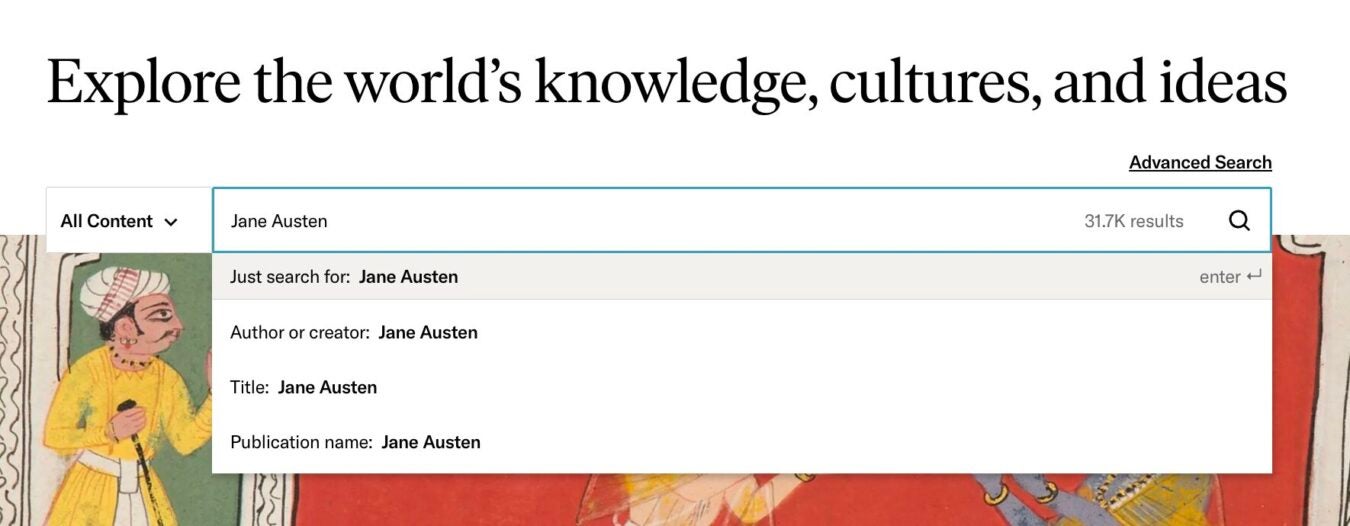
The search bar on JSTOR lets users search across text, images, audio, and video. You can begin with keywords, titles, or authors, then refine with exact phrases, Boolean operators, content type filters, dates, subjects, and “search within results.” Search results can also be sorted by relevance, newest, or oldest, to help students see how different choices change the shape of a result set.
In this way, JSTOR can be especially useful in instruction. Teaching librarians working with a first-year writing class can begin with a broad topic and demonstrate to students how a large set of results becomes more useful as they add relevant terms. Our own research guidance models this kind of process.
This is also where faculty can make research expectations more visible. If an assignment requires peer-reviewed articles, students need to know that “scholarly” and “peer-reviewed” are related but not identical. The majority of journals collected in JSTOR are considered scholarly publications, but primary sources, historical journal content, images, open content, and research reports may not qualify as peer-reviewed. JSTOR does not currently offer a filter for peer-reviewed content only, so students should consult instructors or librarians when that distinction matters.
Share what works
Have a lesson plan, research guide, or classroom activity that helps others teach and learn with JSTOR? Share it with the wider JSTOR community.
Compensation available for accepted submissions.
Move across source types without leaving the research question behind
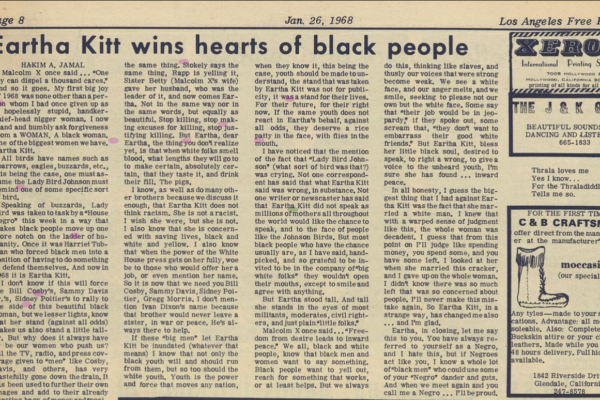
Strong research requires more than one kind of source. Students might need journal articles for scholarly context, book chapters for historical framing, primary sources for contemporary perspectives, or images for visual analysis. JSTOR makes it possible to search and refine across academic content, primary source content, and images. The process encourages comparison between sources.
Images on JSTOR are especially valuable for teaching. Users can search for images through the general search bar or image-specific search page, then use image-focused advanced search fields such as creator, title, subject, work type, style or period, location, culture, or material. They can also browse related images and related text, which can help users connect visual materials to primary and secondary sources. For faculty, this opens practical assignment design.
Use collections to build context
Browsing can help users understand where items come from. JSTOR allows users to browse collections of images and primary sources from libraries, museums, and archives around the world. Users can also browse collections contributed by their own institution, filter collections by contributor or topic, and refine results within a collection.
With integrated results, researchers are given context that can influence interpretation. A single image, pamphlet, letter, or article can look different when a student sees the larger collection around it. Teaching librarians can use collection browsing to help students ask better questions such as: Who created this item? What else appears near it? What institution contributed it? What related materials might complicate the first interpretation?
For institutions that contribute collections to JSTOR, this also creates a meaningful bridge between local materials and wider teaching and research. Faculty can bring institutional collections into assignments, while students can encounter local or specialized materials alongside broader scholarship.
Save the research trail
New researchers are beginning to learn that finding good sources is only part of a robust research process, which otherwise involves keeping careful track of sources for inclusion in bibliographies and works cited. JSTOR can help researchers with Workspace, saving tools, and citation options. Users can organize items into folders and return to them later. They can also generate citations or export bibliographic information to citation managers.
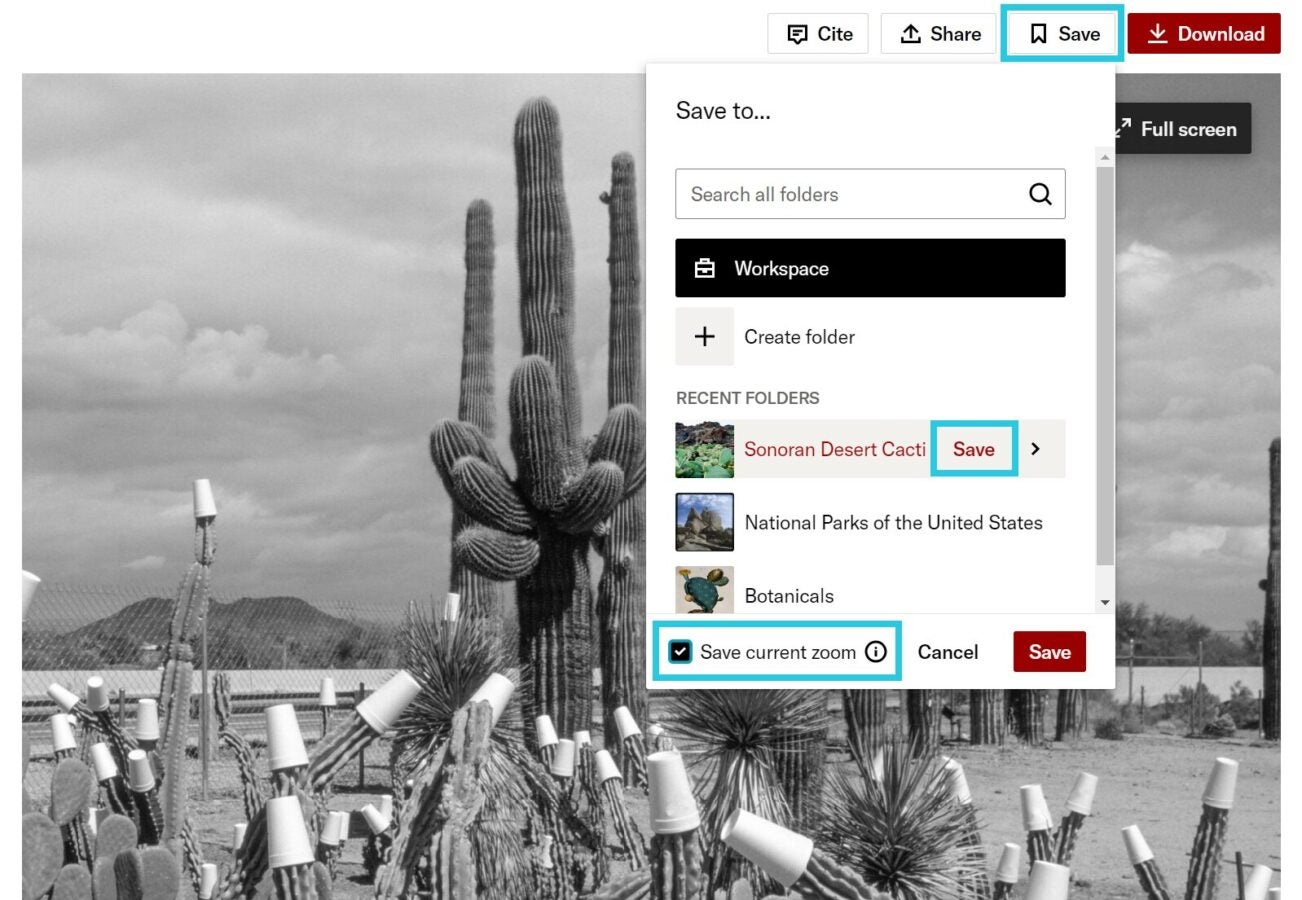
For images, JSTOR allows users to save items to Workspace, export citations in MLA, APA, and Chicago styles, and download images when the contributing institution has enabled downloads and the user has access. Downloaded image filenames can include available creator, title, and date information, which helps users keep better records offline.
When students save their work consistently, they can return to earlier searches, compare sources, and explain how their research changed over time. Faculty can ask students to submit a short research reflection alongside a paper, describing which searches worked, which terms failed, and how they selected the evidence they used.
Use AI-enabled features to ask better questions
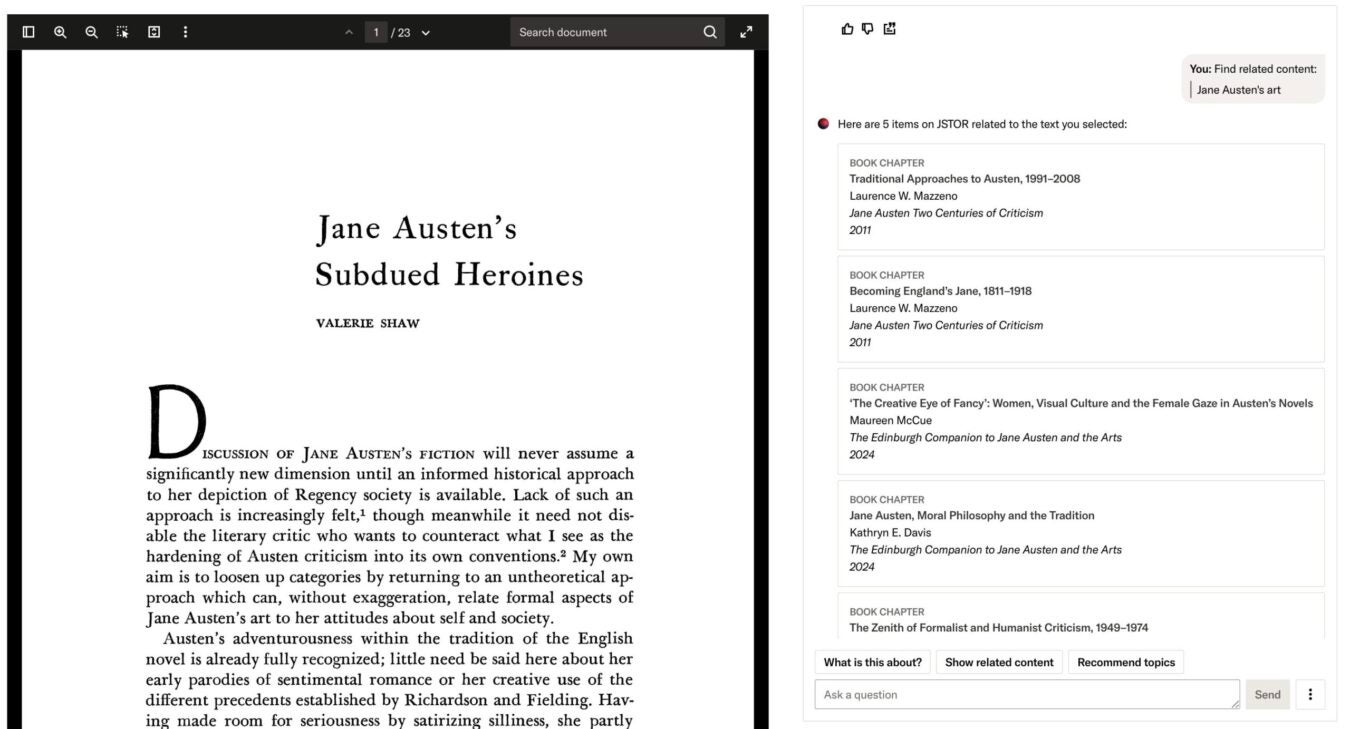
JSTOR’s AI research tool adds another layer to the workflow for institutions that have enabled it. The feature appears on eligible journal articles, book chapters, research report pages, and as an option alongside JSTOR’s semantic search. It can help users evaluate a text by suggesting key points, showing related content, recommending topics, and answering questions about the item.
The tool helps users ask questions about a source they are already evaluating. Students can ask, “What is the central argument?,” “Tell me about the study’s research methodology,” or “Are the study’s limitations described in the text?” It can also help identify where a topic appears in a text, and provide inline citations that users can click to view the original passages. It answers based on the item being evaluated, including the full text and metadata. It does not search the internet or all of JSTOR to answer a question about the item. Like other tools that use large language models, it can make mistakes, so users should verify answers through their own reading and research.
There’s also JSTOR Conversational Discovery GPT, a custom version of ChatGPT that helps users explore JSTOR’s scholarly corpus in conversational language. It can suggest sources, search terms, and advanced queries, and is separate from JSTOR’s AI research tool and semantic search. Because it may include information from the open web in addition to JSTOR metadata, it works best as a discovery aid.
Sample workflows for teaching and learning
To begin, start with a question that still feels a little too large, as this is where students frequently land.
In a library instruction session, a teaching librarian might ask students to search a broad topic, then pause and look at what comes back. Which results seem useful? Which are surprising? Which are clearly off track? The class can then try limiting with date ranges, adding subject filters, or borrowing more precise terms from a promising result. The point here is to show that search is an iterative process.
Continue by slowing the process down. Open an article and review the metadata, ask what kind of source it is, and what questions it can answer. Try pairing it with a primary source or image from a related collection, and ask what changes. Students researching a memorial, for example, might start with a scholarly article and later examine an image that raises a new question.
Faculty can build the same habits into assignments. Rather than asking only for a final bibliography, an instructor might require students to save a small set of sources to Workspace and write a short note about each one. This can help students see research as a set of decisions. It also makes it easier for instructors to see where students are struggling. Faculty can explore our lesson plans for research and images on JSTOR for further inspiration.
New researchers can follow a version of this workflow on their own by searching broadly, and noticing the language that scholars use to discuss their given topics. They should aim to narrow their results and save what looks promising along the way. Checking whether a source is scholarly, primary, visual, or something else, and engaging in closer reading is of the utmost importance, and researchers might use JSTOR’s AI research tool to ask focused questions about the item. The tool is designed to support reading, but does not strive to interpret the material or offer definitive conclusions on the researcher’s behalf.
Taking the next steps in research
Smarter research workflows make this important work more visible. JSTOR helps users see how search terms shape results, how source types serve different purposes, how collections create context, how citations support accountability, and how AI-enabled tools can support careful reading when users verify what they find, supporting the curiosity and revision that research actually requires.