Your centralized resource for research and teaching
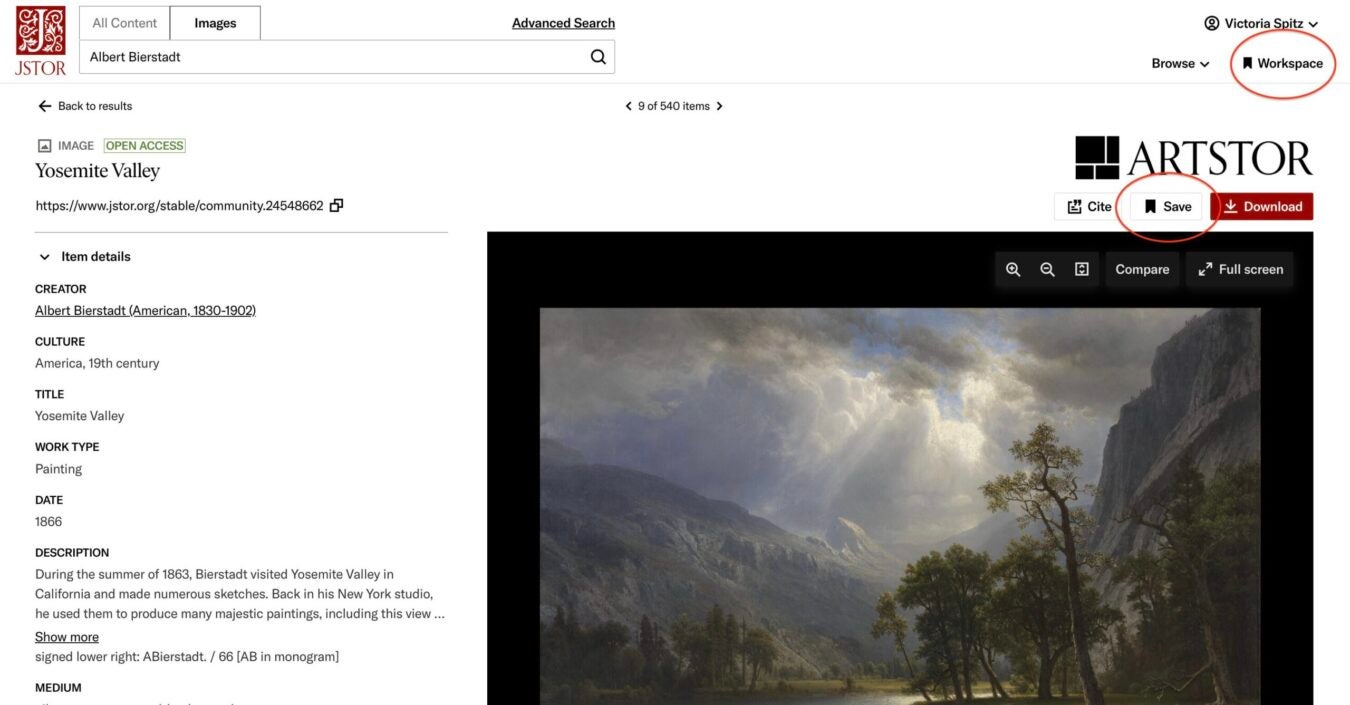
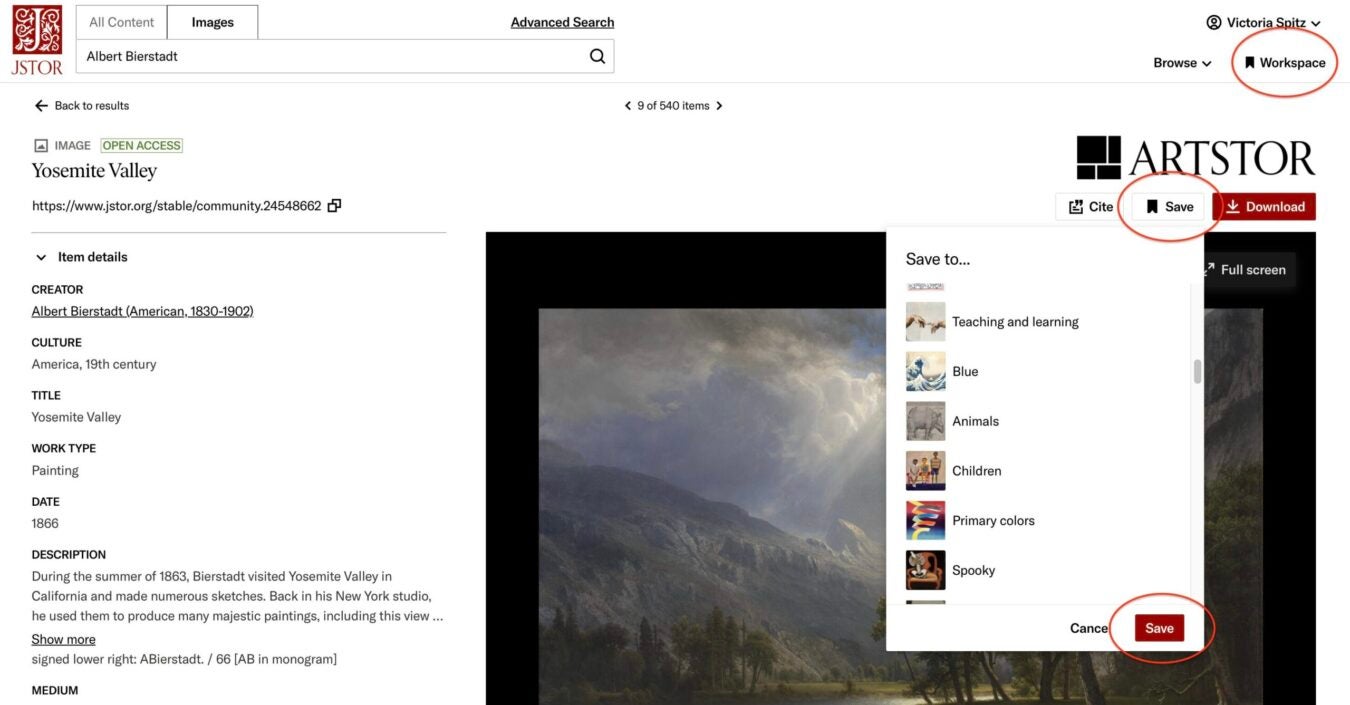
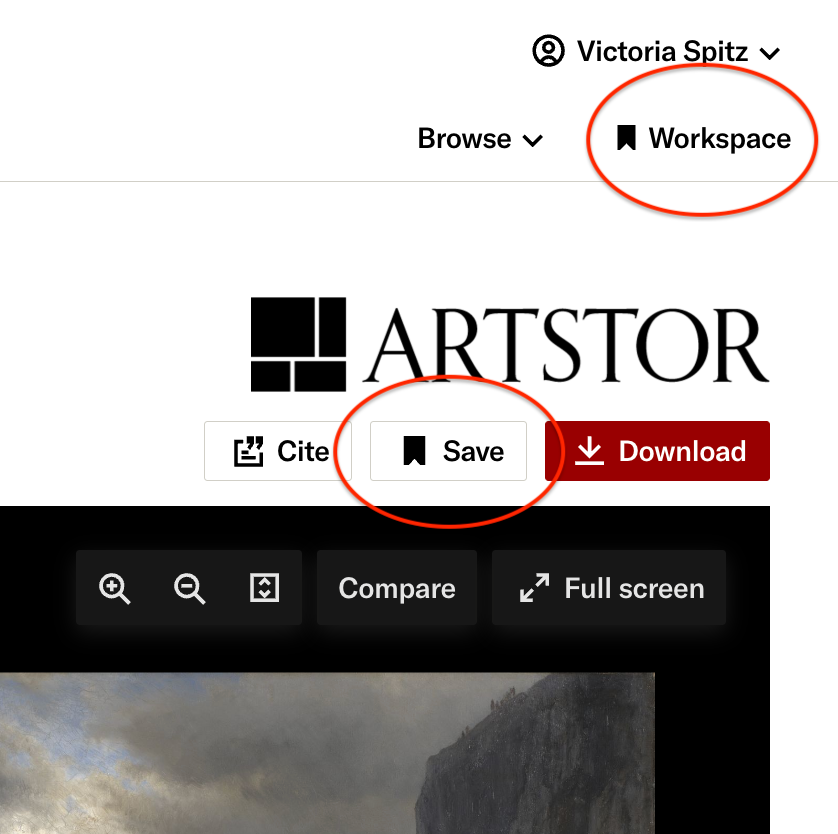
Have you ever noticed the small bookmark icon in the top right corner of the JSTOR homepage? Maybe you’re in a rush and dive straight into your keyword search, but for the curious few who’ve clicked it, it’s a game-changer for research and teaching. This feature is called Workspace.
As described perfectly by one of our editors, JSTOR Workspace is like “a digital filing cabinet where you can store and manage research materials in a single, organized location.” It’s what we at JSTOR consider a hidden gem. Not because it’s hidden, but because we wish more users knew about it.
Meet Sienna Weldon: Researcher, curator, and Workspace “super user”
Meet Sienna Weldon, assistant curator at California State Parks and an Art History instructor at Sierra College. A self-described Workspace “super user,” Sienna believes more users should take advantage of this powerful tool beyond just downloading articles.
A former MA student in Art History, Sienna was naturally very familiar with JSTOR, and one day, stumbled upon Workspace. She was feeling overwhelmed by the amount of information while conducting research on a project about the Franklin Expedition and the Donner Party. Sienna was trying to situate them within the discipline of art history, navigating numerous files and articles over a seven month period.
“I stumbled upon it when I started looking at JSTOR’s landing page,” said Sienna. “There’s the universal icon for tabs or saving in the upper right corner. I clicked on it thinking, ‘What does Workspace mean?’ I don’t even remember what I initially expected… but then I realized that this is really cool feature that’s actually super helpful.”
Finding focus and staying organized
About halfway through the research process, Sienna started to feel overwhelmed and disorganized. Her research was saved in folders and PDFs, but things kept falling through the cracks. There wasn’t a good catch-all system. That’s when she discovered Workspace, and found it to be a real game changer.
Sienna could save and tag the articles she was combing through on JSTOR without leaving the platform. This was extra helpful since she was still in the early stages of research, where there’s a tendency to click on everything that shows up in your search. But as she found, a lot of the articles weren’t relevant, or only tangentially related, and reading through them all took time, effort, and organization.
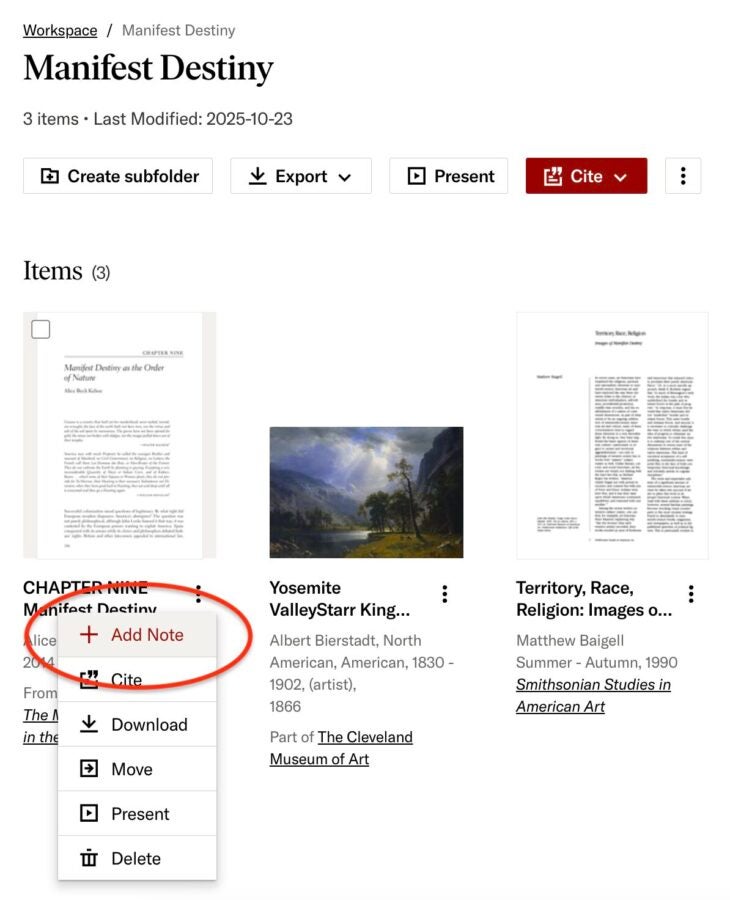
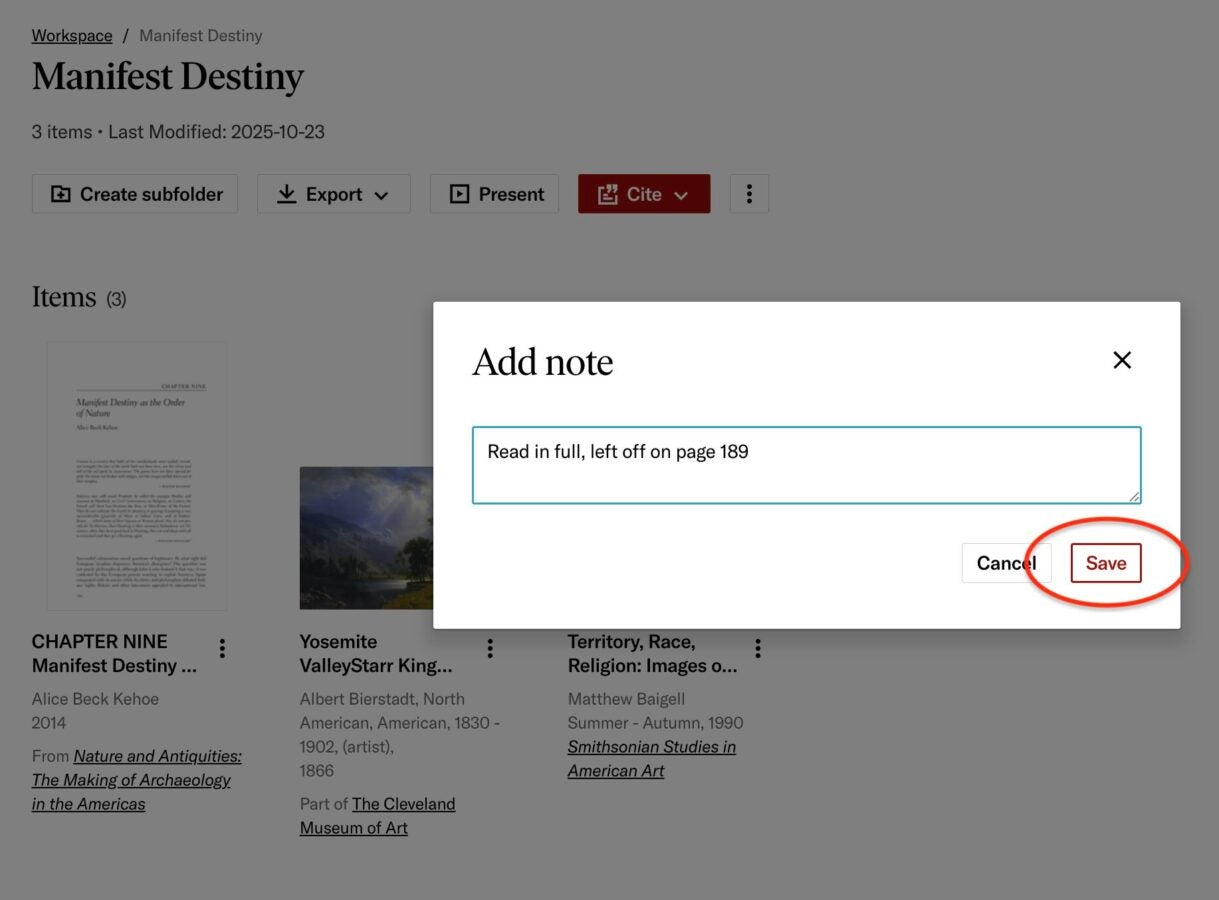
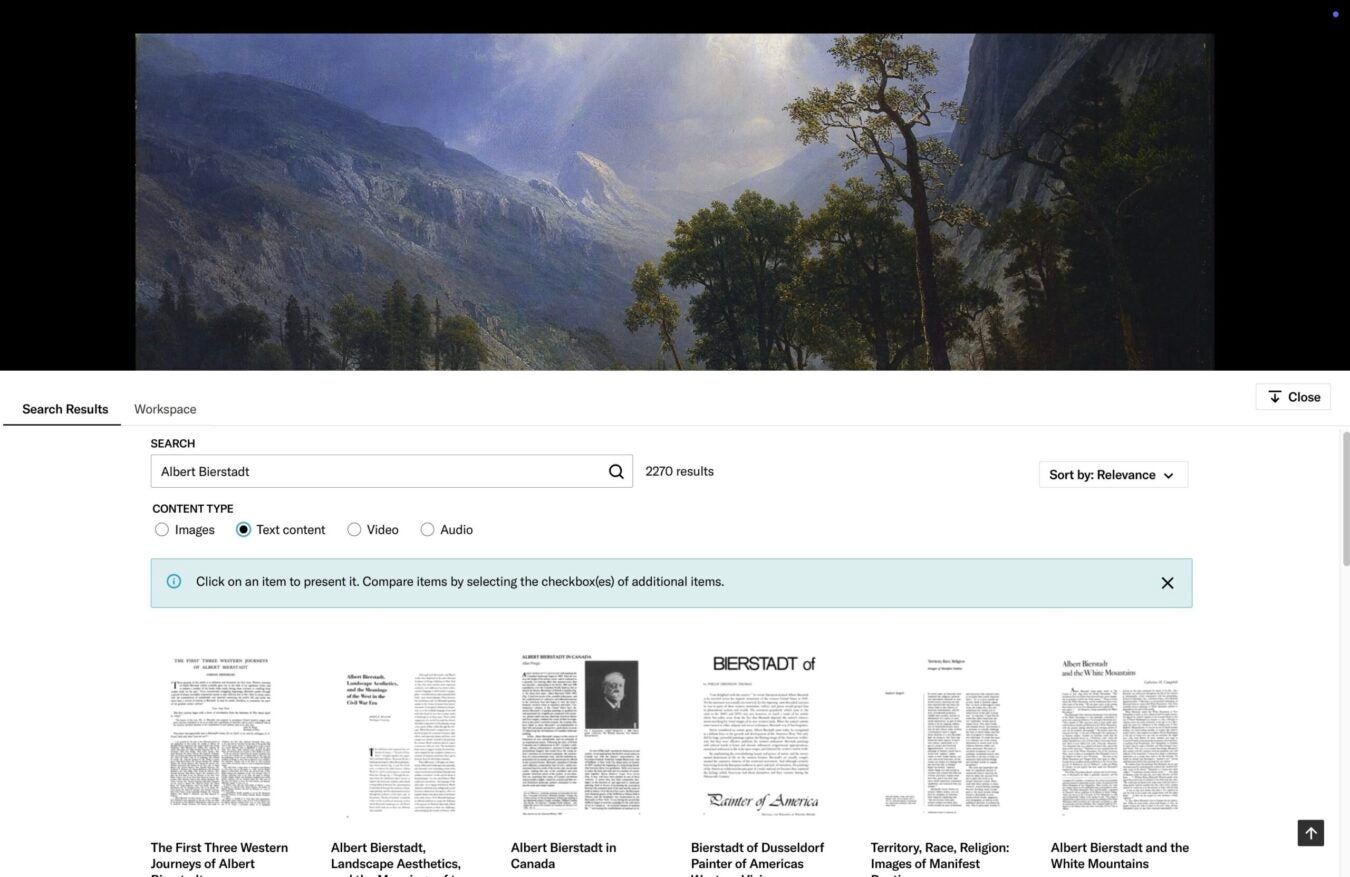
One of her favorite Workspace features is the ability to record notes on what she reads. Sienna often uses this to jog her memory after stepping away. The notes section, where you can add comments to a saved image, article, or even a folder, helps her remember where she left off, what the last article was, and whether it was actually relevant.
As Sienna found, Workspace is more than just a folder and bookmarking tool for saving articles and images found on JSTOR. It allows you to stay organized, maximize research efficiency, and build confidence in your research skills. You can add notes both to folders (and folders within folders) and to individually saved items. For Sienna, this note-taking feature allowed her to integrate reading notes directly with the articles. Much like jotting down thoughts in the margins of printed articles.
Empowering students through Workspace
As Sienna wraps up her first semester teaching at Sierra College, she envisions how first-year college students can benefit from using an all-in-one research organizer like Workspace—not only to stay organized, but to feel empowered navigating digital academic resources. As she explains: “Because the interface of Workspace is so user-friendly and approachable, I could see it being really great for students who’ve never written a research paper before or haven’t worked with a lot of different sources. It feels really digestible for them. Instead of research being this overwhelming task, Workspace helps break it down. You can place things, come back to them, and you don’t need to read a 100-page article in one sitting. You can make a note—like, “left off on page 39”—and return to it later.
That’s the beauty of Workspace to me, especially for students who may feel intimidated or unfamiliar with this kind of work. It’s just a really accessible, supportive tool.”

Instead of research being this overwhelming task, Workspace helps break it down. You can place things, come back to them, and you don’t need to read a 100-page article in one sitting. You can make a note—like, “left off on page 39”—and return to it later.
That’s the beauty of Workspace to me, especially for students who may feel intimidated or unfamiliar with this kind of work. It’s just a really accessible, supportive tool.
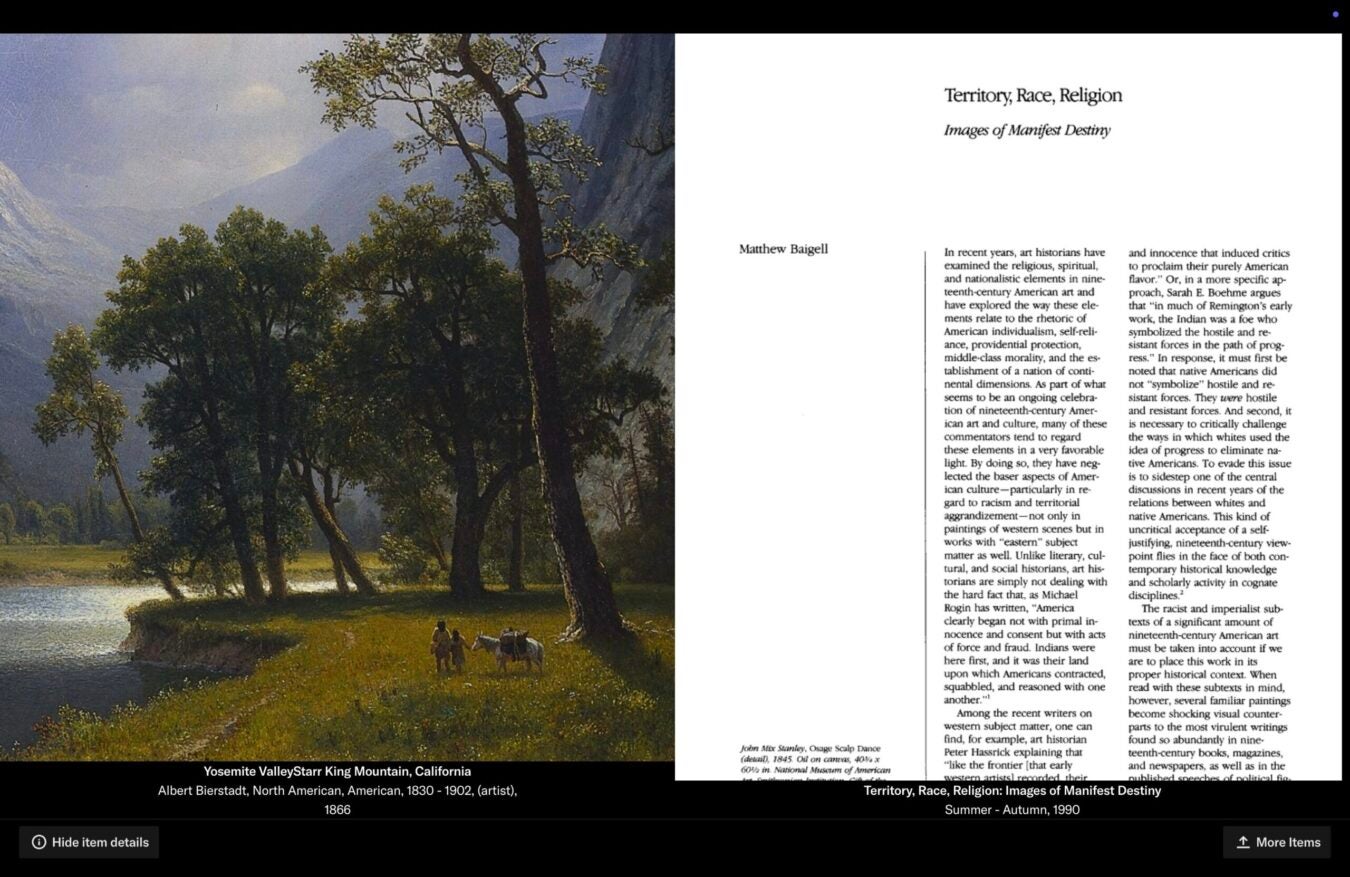
In addition to its organizational function, Workspace also lets users export saved folders and items as PowerPoint, PDF, or ZIP files—retaining your descriptions and notes. This makes it ideal for teaching: convert your personal notes into class prompts or quiz questions. No need to manually copy and paste into Word documents.
Don’t have PowerPoint? Use the built-in Present mode to display saved items directly from Workspace. Zoom in, zoom out, or compare items side-by-side in Compare mode—all from your browser.
Unlock the power of Workspace with a free personal account
With Workspace, you can access the information and scholarship on JSTOR, even if you don’t have institutional access. Sienna’s experience echoes what we hear often: there’s a myth that you lose JSTOR access after graduation. However, anyone can create a free personal JSTOR account, whether or not you’re affiliated with an institution.
With a free, individual account, you can read up to 100 articles every 30 days. In the meantime, there’s no limit on how much you can use Workspace. Save, organize, annotate—Workspace is fully available to all JSTOR account holders. Sienna said, “I think not enough people know that… you can access the information and scholarship on JSTOR, even if you don’t have institutional access. I feel like a lot of people, like even people that I know that I went to grad school with, don’t know that you have this option to still have access…”
I think not enough people know that… you can access the information and scholarship on JSTOR, even if you don’t have institutional access. I feel like a lot of people, like even people that I know that I went to grad school with, don’t know that you have this option to still have access…
Sienna went on to say, “I can’t stress enough how much I love JSTOR—and especially Workspace. It’s truly changing the game when it comes to approaching the research process. It’s certainly transformed mine, helping me stay on track with what I need to do and what I’ve already accomplished.”

Make the most of your JSTOR experience
At JSTOR, we build features like Workspace to support your teaching and research. While many users come to JSTOR just to access articles, we love seeing people explore all the tools we’ve created—like Sienna does. Give it a try. We think you’ll love it, too. Already integrating Workspace into your classroom? Share your use case idea with us!